A PDF reader, a calculator, a Wi-Fi test
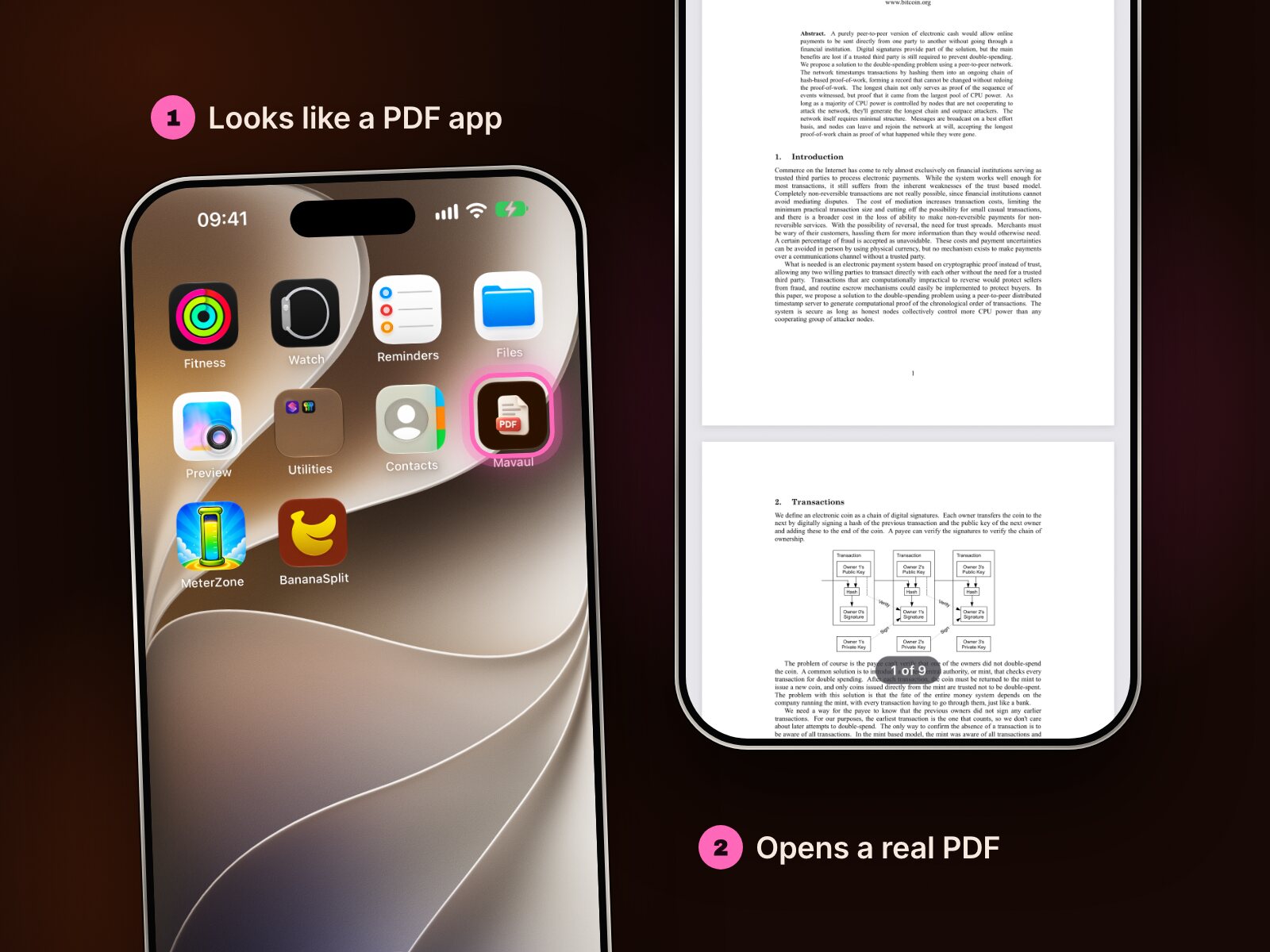
Today we're adding three apps to your iPhone.
The first one is a PDF reader. The second is a calculator. And the third is a Wi-Fi test.
So, three things: a PDF reader, a calculator and a Wi-Fi test. A PDF reader, a calculator… are you getting it?
These are not three separate apps. This is one app, and it's your photo vault, Mavaul.
Yes, we borrowed that. It's how Steve Jobs introduced the iPhone in January 2007: “An iPod, a phone and an Internet communicator… are you getting it?” It's still the best product reveal there has ever been, for a product that changed everything after it. A photo vault in disguise isn't quite the iPhone, so take it as the joke it is. We couldn't resist.
A vault that doesn't look like one
A lock screen tells everyone there's something worth locking. Someone picks up your phone, sees an app called Mavaul with a padlock, and the next question is what's inside.
So Mavaul can look like something else. Pick a disguise and the home screen icon switches to match, so there's no padlock anywhere. Open the app and you get that app, not a passcode screen.
Each one really works
A disguise only works if it holds up when someone pokes at it. A fake calculator with dead buttons gives itself away the first time someone tries 2 + 2. So each disguise is a small app that does its job.
- PDF Reader. Opens the Bitcoin white paper. Scroll it, zoom into it, jump between its nine pages. To open the vault, tap the page number at the bottom and type your passcode in Go to Page. A page number from 1 to 9 just goes to that page. - Calculator. Adds, subtracts, multiplies and divides. Type your passcode on the keypad. - Wi-Fi Test. Shows your connection and runs a short latency test, with real ping, jitter and loss. Tap Server and type your passcode as the server ID.
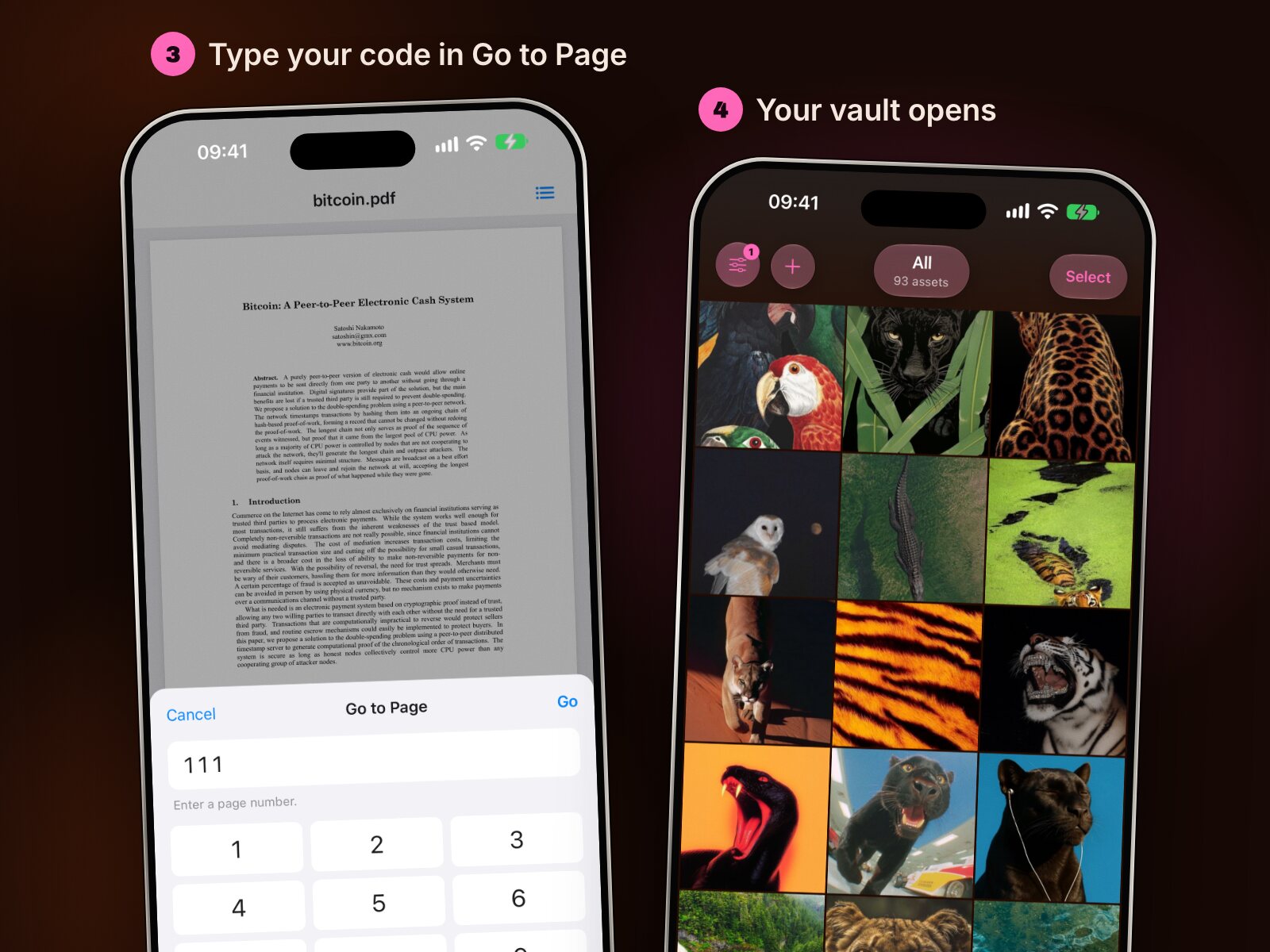
Nothing on screen asks for a passcode, and a wrong one shows no lockout warning, so the disguise never gives itself away.
Matching icons
The icon is the first thing anyone sees, so it switches with the disguise: a PDF file, a calculator or a Wi-Fi router. They're made to sit next to the apps already on your home screen.
iOS lets apps change their icon but not their name, so the label under it still says Mavaul. If that matters to you, tuck it in a folder.
Try it before it's on
Getting locked out of your own photos would be worse than getting caught. So turning on a disguise starts with a practice run: open it with your passcode, then find the way to your recovery key (long-press the file name on the PDF Reader, the title on the Wi-Fi Test, or the display on the calculator). Only then does it switch on. Cancel at any point and nothing changes.
Free and Premium
The calculator, with its icon, is free. The PDF Reader and the Wi-Fi Test come with Premium, and if Premium ends, the disguise you're using keeps working.
A disguise is about not being noticed. What keeps the photos safe is still the same: AES-256 encryption on the phone, whatever the vault looks like from the outside. Everything about the disguises is on the Decoy mode page.