Decoy mode
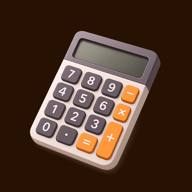
Decoy mode turns your photo vault into a calculator app, and it's free. Turn it on and the home screen icon switches to a calculator, and opening the app shows a calculator that really calculates. Type your passcode on its keypad and the vault opens. Many calculator vaults charge for the disguise; in Mavaul the whole thing is on the free plan. With Premium, swap the icon for a cat, a bottle of hot sauce, a painting and more.
How to use it
- Turn on Decoy mode in Settings. The home screen icon switches to a calculator, and from then on Mavaul opens to a calculator instead of its lock screen.
- Use it like any calculator. 2 + 2 shows 4, so a quick look gives nothing away.
- Type your 4-digit vault passcode on the keypad to open the vault.
- Want a different disguise? With Premium, pick a cat, hot sauce, a painting, a folder or a peach for the home screen instead.
Pick an icon







The details
| Spec | Decoy mode |
|---|---|
| Lock screen | A working calculator in place of the passcode screen |
| Get in | Type your vault passcode on the calculator keypad |
| Wrong passcodes | No lockout warning on screen, so the calculator never gives itself away |
| Forgot passcode | Long-press the display or = to reach the recovery key |
| Home screen icon | Switches to the calculator when Decoy mode is on. With Premium: Cat, Hot Sauce, Painting, Folder, Peach, Geometric Peach |
| Second vault | None. The calculator is the decoy, not a fake gallery |
| Plan | Free, including the calculator icon. Other icons are Premium |
Good to know
- The name under the icon stays Mavaul. iOS lets apps change their icon but not their name, so tuck it in a folder if that matters to you.
- When the icon changes, iOS shows a short notice saying so. That's iOS, and it only shows at that moment.
- Decoy mode hides the vault behind a calculator. It doesn't open a second, fake vault.
- The photos are encrypted either way. The disguise is about not being noticed; encryption is what keeps them safe.
Questions
Does the calculator really work?
Yes. It adds, subtracts, multiplies and divides like any calculator. Only your passcode opens the vault.
Is there a free calculator vault?
Yes. Mavaul's Decoy mode is free: turn it on and the icon switches to a calculator, and the app opens to a working calculator. Your passcode on the keypad opens the vault.
Can I make Mavaul look like a calculator app?
Yes. Turn on Decoy mode. The home screen icon and the lock screen both become a calculator, on the free plan.
Can I use a different icon?
Yes. The calculator icon is free. With Premium, pick a cat, hot sauce, a painting, a folder, a peach and more.
Does Mavaul have a fake second vault?
No. Decoy mode is the calculator itself. There is one vault, opened by your passcode.